From bank statement to spreadsheet in five steps
Pick your bank, export, import, review, sync. The first run takes about two minutes.
The five steps
- 01
- 02
Export
Download a statement for the months you want: PDF from ANZ, BNZ, ASB and Westpac, or CSV, not XLSX, from any other bank.
- 03
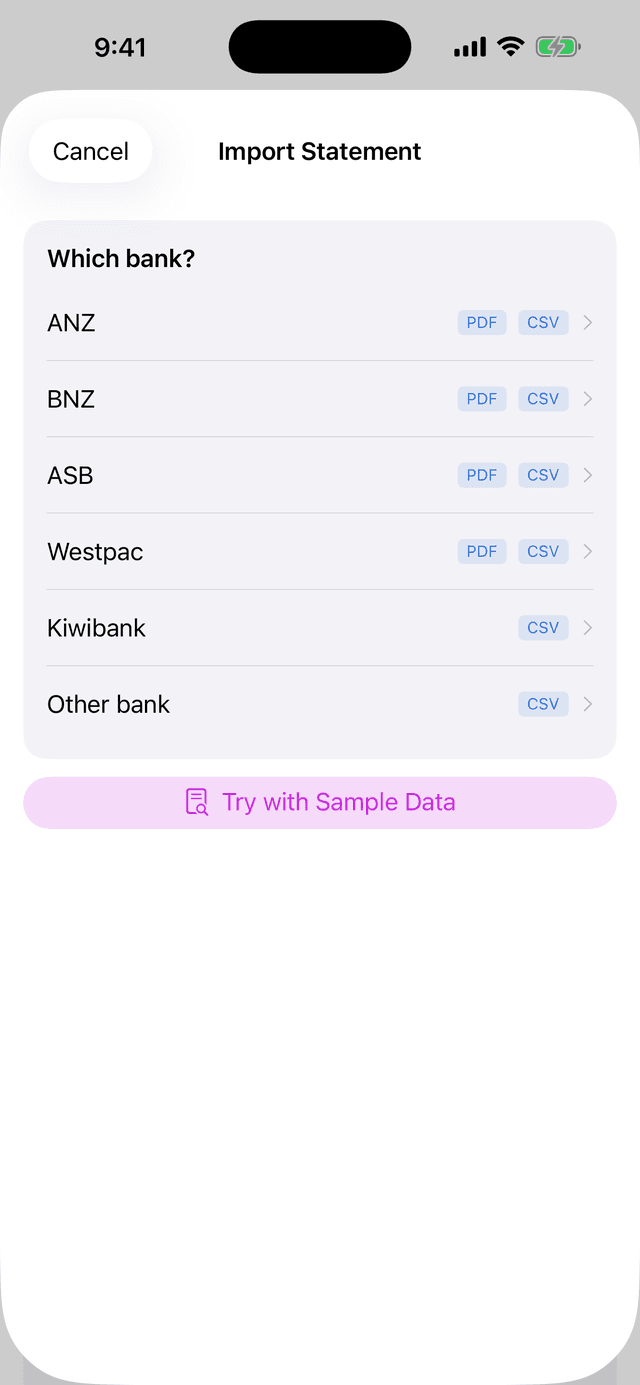
Import
Open SmartStatement, tap Import Statement, and choose the file you just downloaded.
- 04
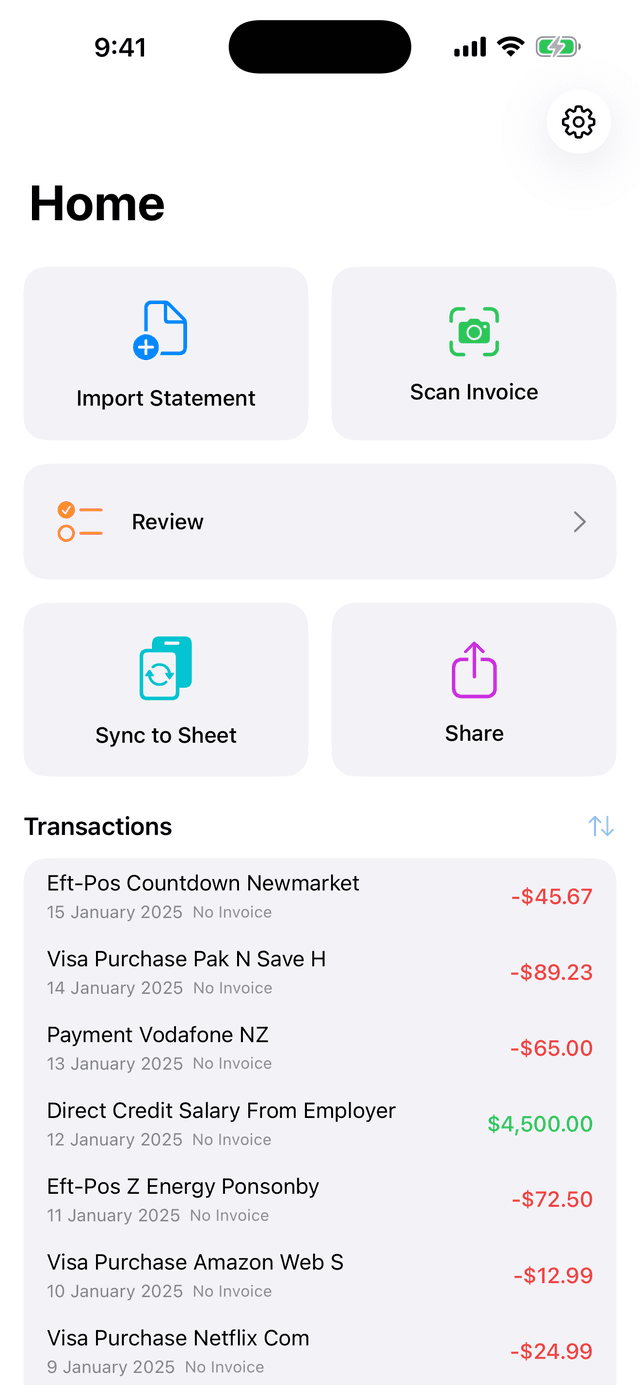
Review
Approve the suggested categories and let the duplicate check drop the rows an earlier statement already brought in.
- 05
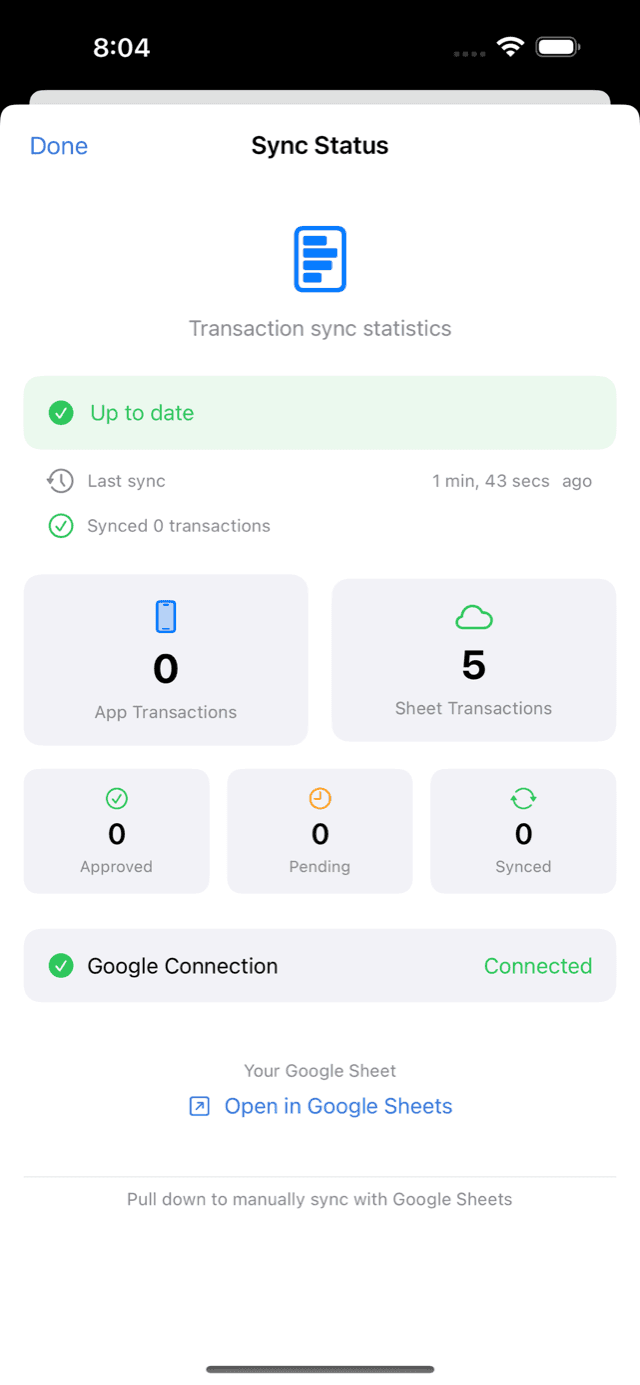
Sync
Tap Sync to write the approved rows into a Google Sheet in your own Drive.
Something went wrong?
Find the line the app showed you. Each one has a fix that takes a minute.
This PDF isn't from ANZ, BNZ, ASB or Westpac
Export a CSV from internet banking instead, using the guide for your bank above.
This PDF is a picture, not text
Download the original PDF or a CSV from internet banking, because a scanned or printed statement carries no text to read.
We couldn't find date and amount columns
Use your bank's own Export as CSV rather than a spreadsheet you saved yourself.
This file isn't a text CSV
It may be an XLSX renamed to .csv, so export CSV again from internet banking.
Download the file first
Open the Files app, tap the file once to download it, then choose it again.
Import didn't work
Try again, and if it repeats send feedback from Settings so we can look at the file.
Questions
Do I need a Google account?
No. Sign in with Apple and use the app fully offline. Connect Google Drive later in Settings when you want a synced sheet.
Which banks are supported?
PDF statements from ANZ, BNZ, ASB and Westpac are parsed natively. CSV import is tested against 34 bank export formats across 8 countries, including Kiwibank.
Where is my data stored?
On your iPhone, and in a Google Sheet inside your own Drive if you connect it. The only thing that reaches our server is feedback you choose to send us.
Can I use it with Xero or my accountant?
Yes. The synced Google Sheet is a plain spreadsheet. Share it, export CSV, or import it into your accounting software.
How do I cancel?
Subscriptions are managed by Apple. Open Settings, tap your name, then Subscriptions.
Start with one statement
Free to start, and the sheet it writes to stays in your own Google Drive.